> ## Documentation Index
> Fetch the complete documentation index at: https://help.l-boost.com/llms.txt
> Use this file to discover all available pages before exploring further.
# Lブーストの設定を変える
## この機能でできること
LINE公式アカウントごとに、プランの契約、操作できるメンバーの招待、LINEとの連携の状態を確かめたり変えたりできます。
## 使う前の準備
プランを変える・メンバーを招待するには、そのLINE公式アカウントのオーナーか支払いオーナーである必要があります。
## 手順
### 1. 左のメニューの「設定」を押す
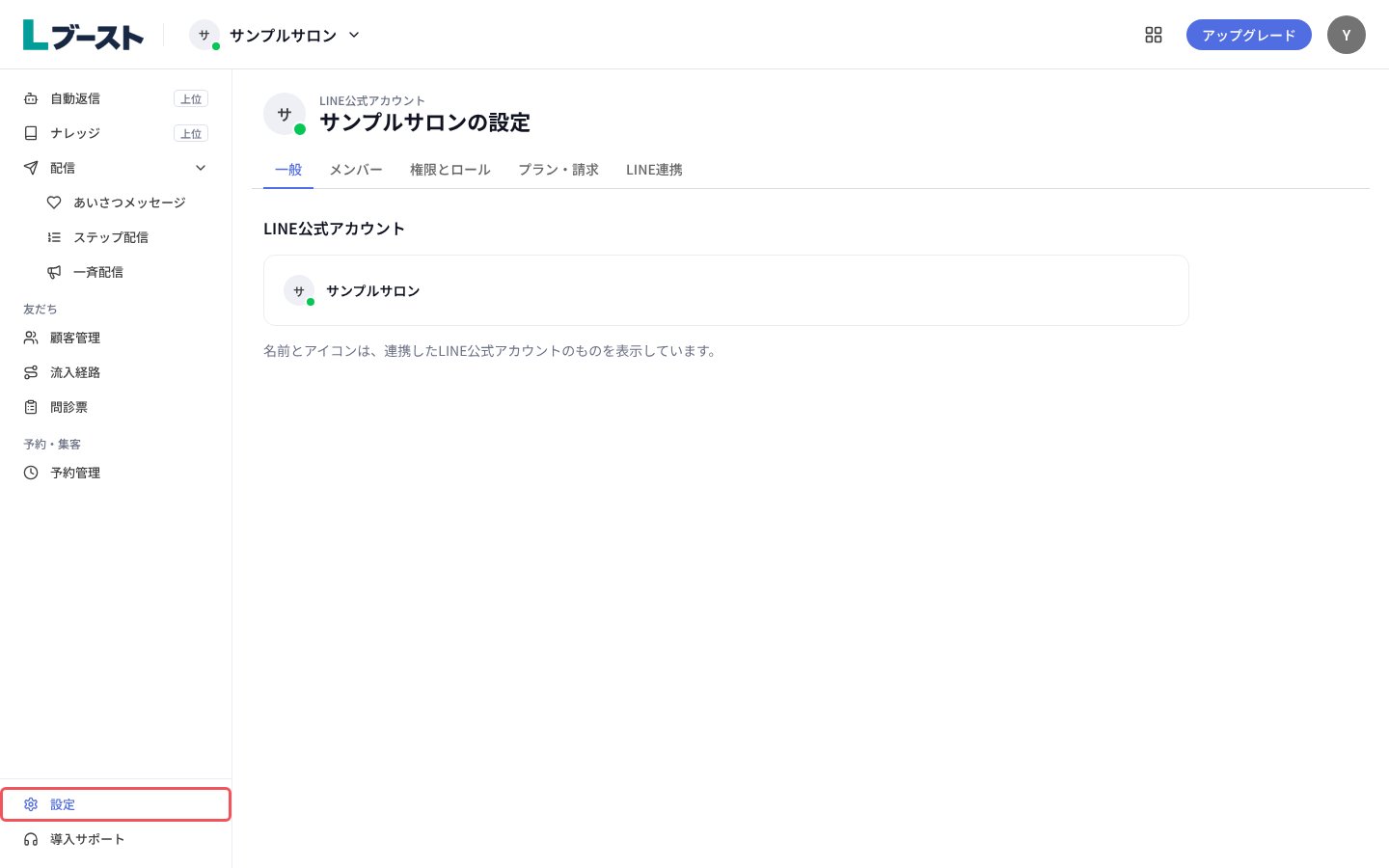 「一般」タブには、LINE公式アカウントの名前とアイコンが出ます。どちらも連携したLINE公式アカウントのものを表示していて、ここでは変えられません。
### 2. 「プラン・請求」タブで「上位プランにする」を押す
「一般」タブには、LINE公式アカウントの名前とアイコンが出ます。どちらも連携したLINE公式アカウントのものを表示していて、ここでは変えられません。
### 2. 「プラン・請求」タブで「上位プランにする」を押す
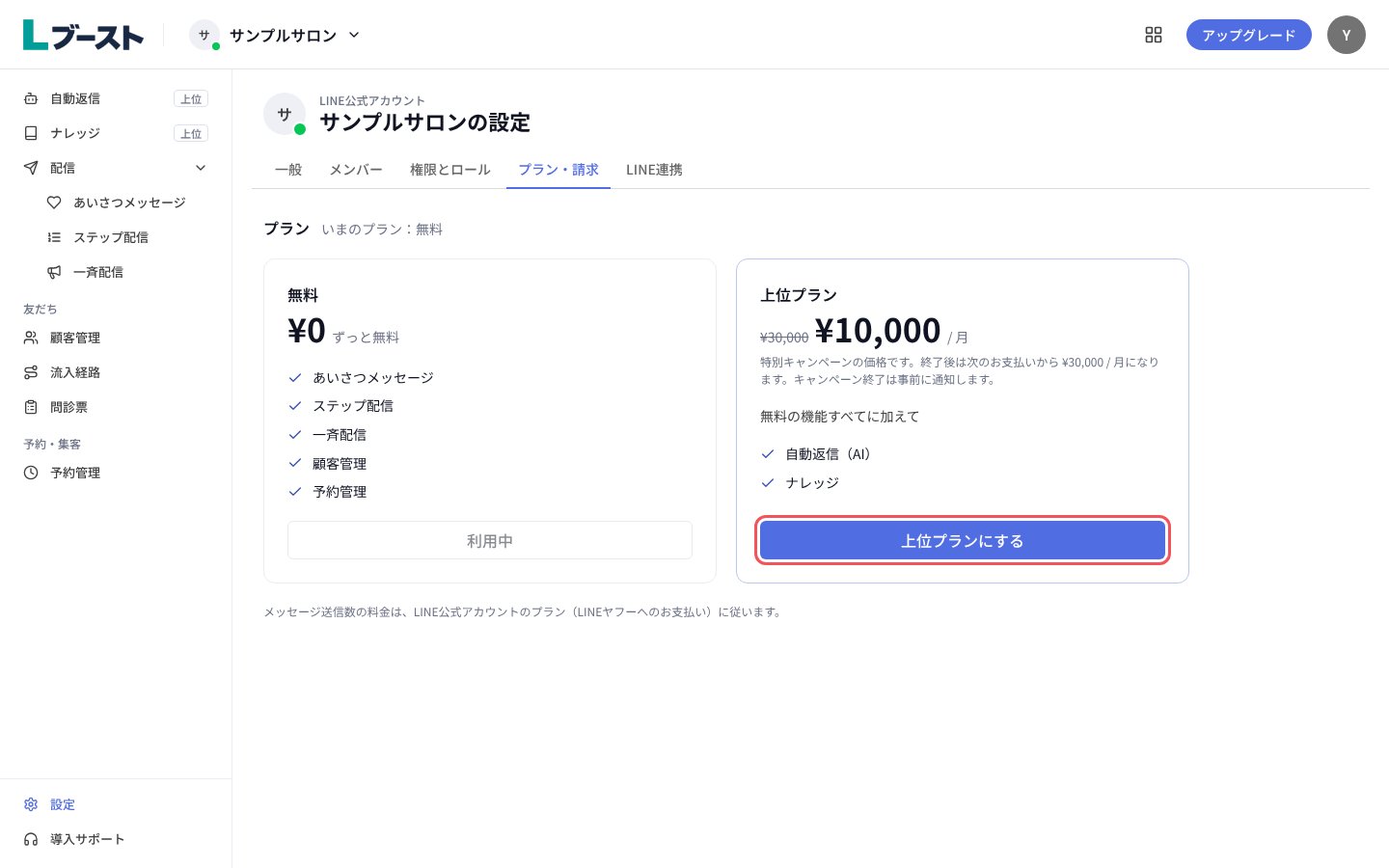 お支払いの画面に移ります。上位プランにすると、自動返信(AI)とナレッジが使えるようになります。
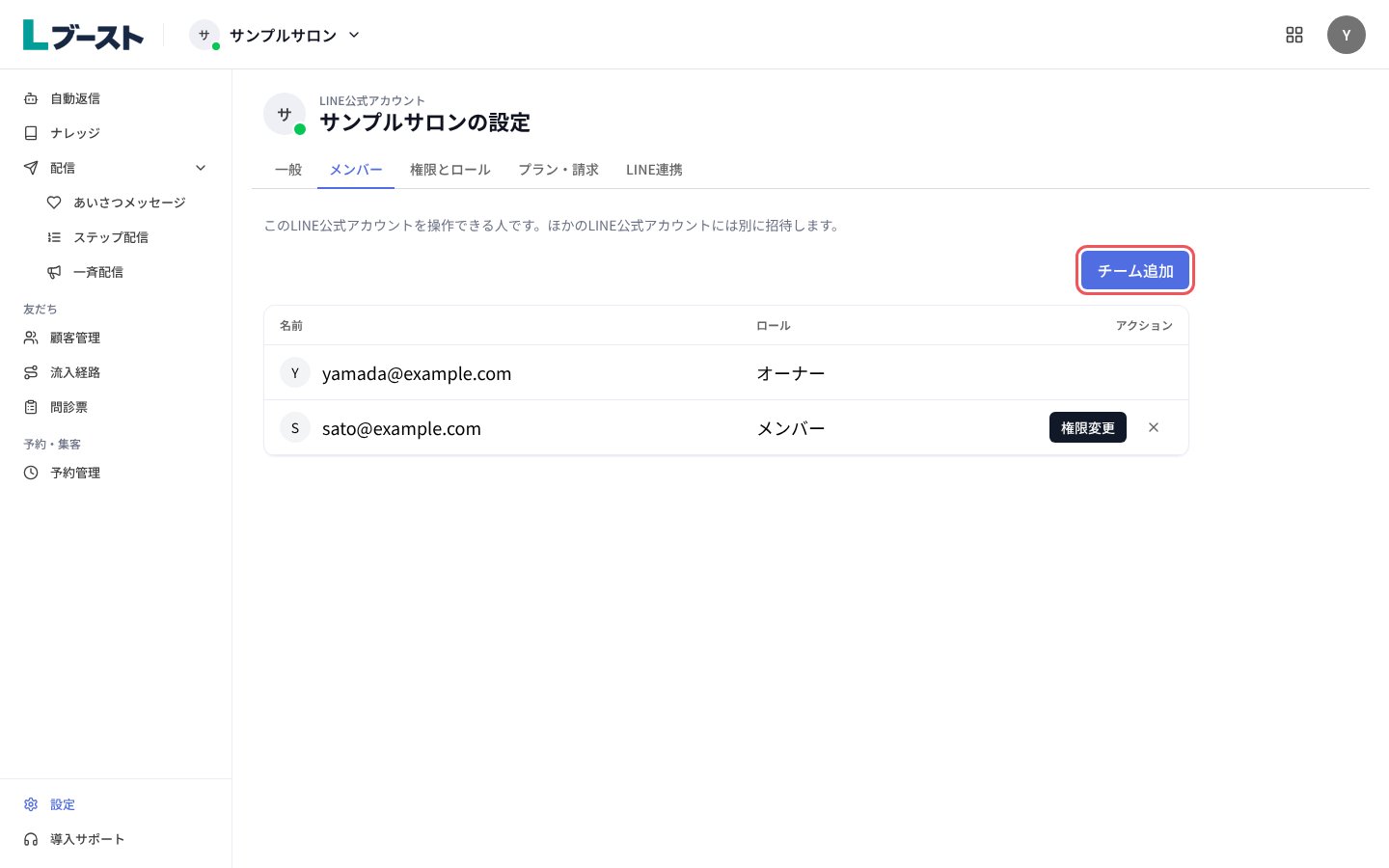
### 3. 「メンバー」タブで「チーム追加」を押す
お支払いの画面に移ります。上位プランにすると、自動返信(AI)とナレッジが使えるようになります。
### 3. 「メンバー」タブで「チーム追加」を押す
 ### 4. メールアドレスとロールを入れて「招待を送信」を押す
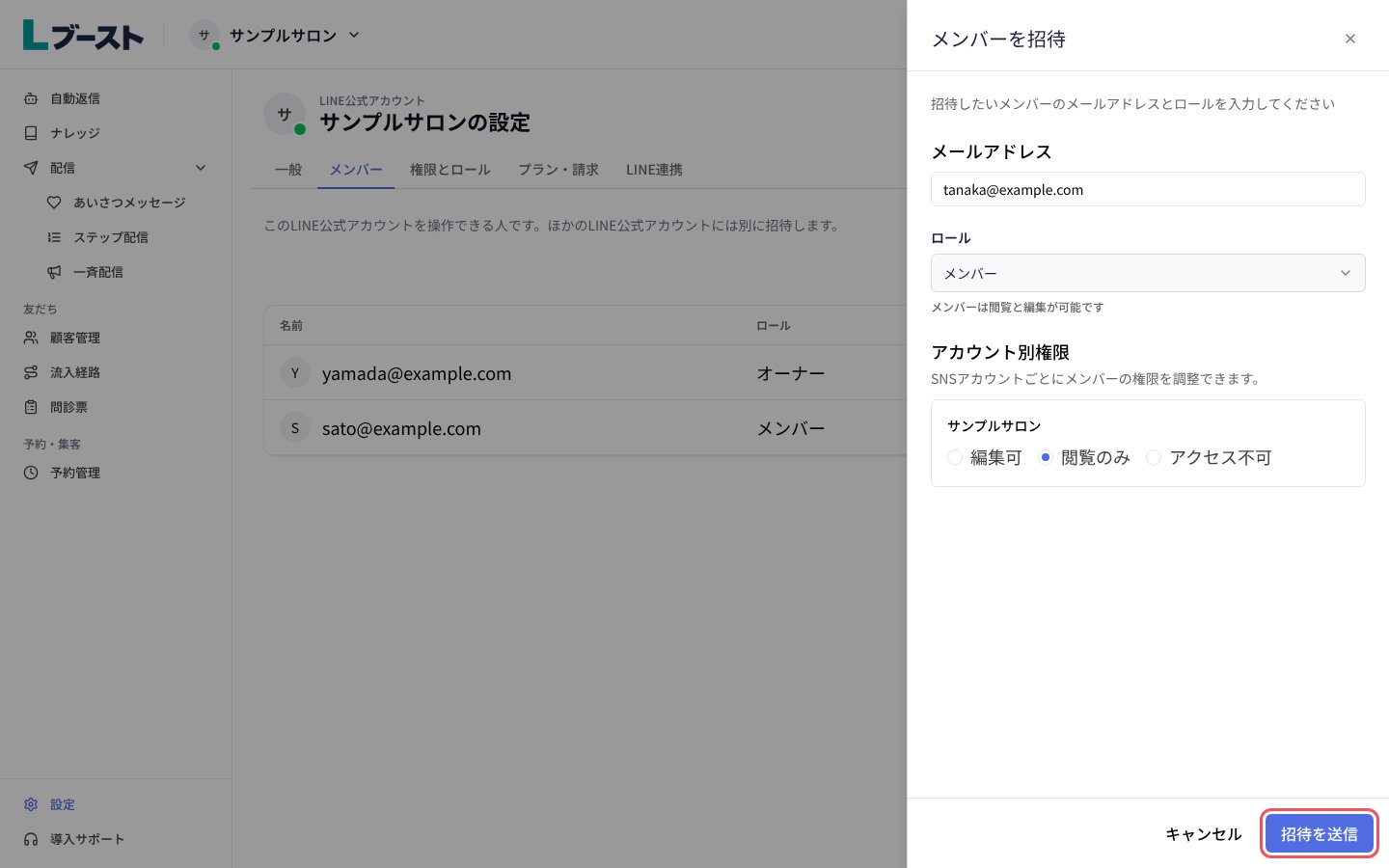 ロールが「メンバー」のときは、最初は「閲覧のみ」が選ばれています。編集もしてもらいたいときは「編集可」を選んでください。
### 5. 「権限とロール」タブで、ロールごとにできることを確かめる
ロールが「メンバー」のときは、最初は「閲覧のみ」が選ばれています。編集もしてもらいたいときは「編集可」を選んでください。
### 5. 「権限とロール」タブで、ロールごとにできることを確かめる
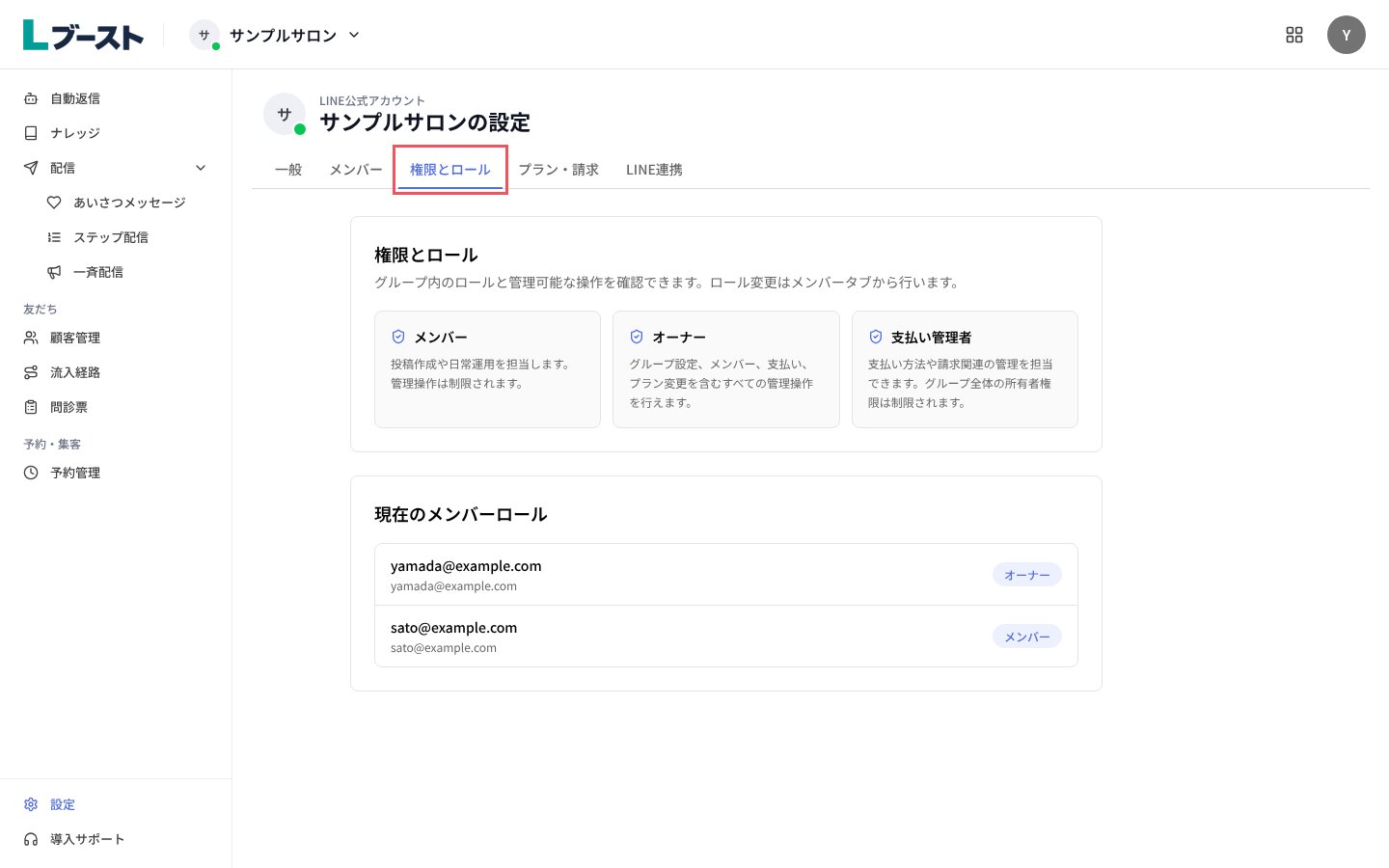 ロールを変えるときは、「メンバー」タブの「権限変更」から行います。
### 6. 「LINE連携」タブで、連携の状態を確かめる
ロールを変えるときは、「メンバー」タブの「権限変更」から行います。
### 6. 「LINE連携」タブで、連携の状態を確かめる
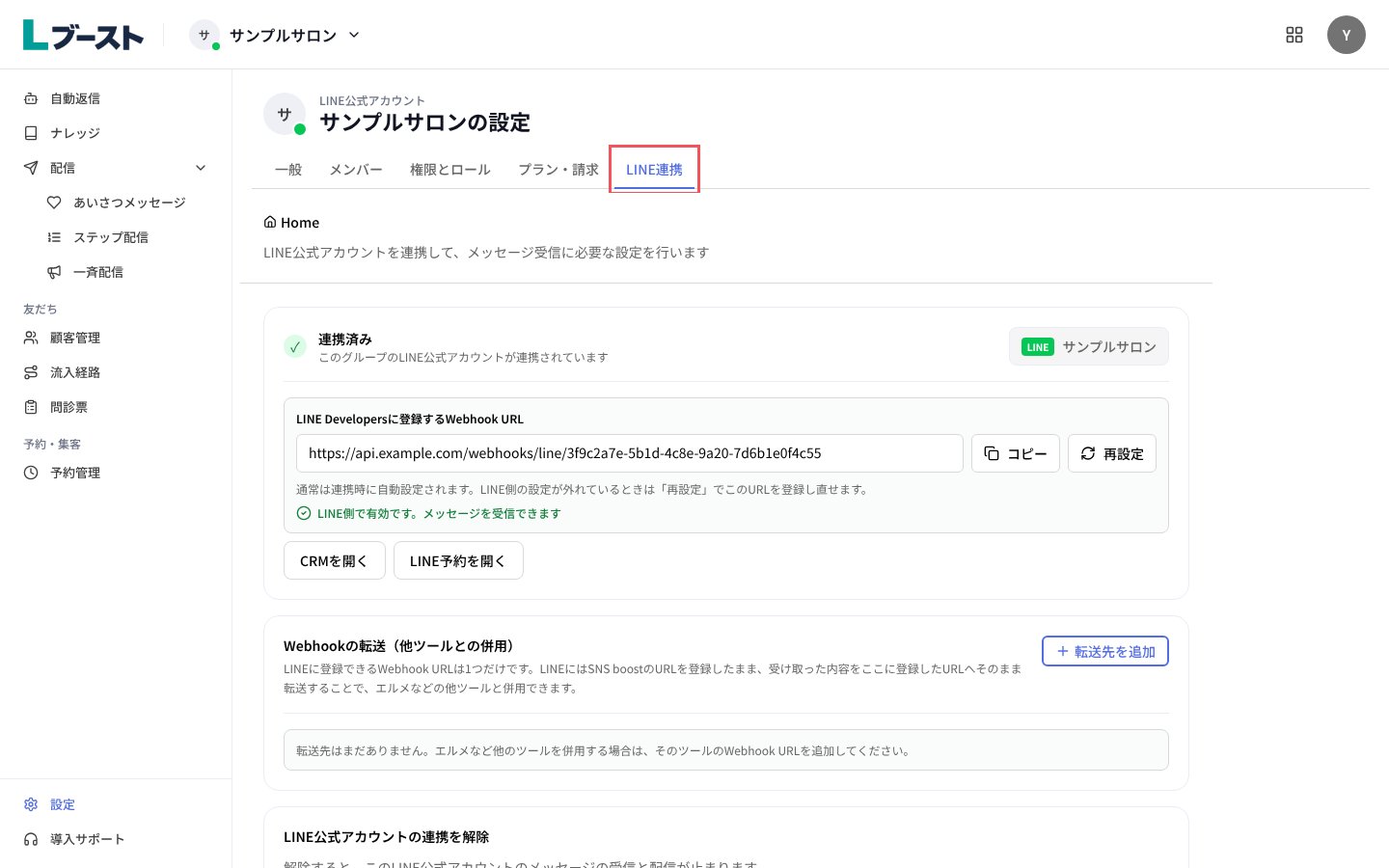 連携のしかたは「LINE公式アカウントを連携する」のガイドを見てください。
## つまずきやすい点
* 設定は、LINE公式アカウントごとに別々です。ほかのLINE公式アカウントのメンバーやプランは、ヘッダーでアカウントを切り替えてから設定を開いてください。
* 無料プランでは、メンバーを招待できません。上位プランでは、自分を含めて10人まで使えます。
* メッセージ送信数の料金は、LINE公式アカウントのプラン(LINEヤフーへのお支払い)に従います。Lブーストのプランとは別です。
* 上位プランを解約しても、いまの請求期間が終わるまでは上位プランの機能を使えます。
This documentation is built and hosted on [Mintlify](https://mintlify.com), a developer documentation platform.
連携のしかたは「LINE公式アカウントを連携する」のガイドを見てください。
## つまずきやすい点
* 設定は、LINE公式アカウントごとに別々です。ほかのLINE公式アカウントのメンバーやプランは、ヘッダーでアカウントを切り替えてから設定を開いてください。
* 無料プランでは、メンバーを招待できません。上位プランでは、自分を含めて10人まで使えます。
* メッセージ送信数の料金は、LINE公式アカウントのプラン(LINEヤフーへのお支払い)に従います。Lブーストのプランとは別です。
* 上位プランを解約しても、いまの請求期間が終わるまでは上位プランの機能を使えます。
This documentation is built and hosted on [Mintlify](https://mintlify.com), a developer documentation platform.